You're in. Let's get you set up.
This is a one-time setup. Give it about an hour. Most of that is just downloads running in the background. After today, making something takes a few minutes. You don't need any tech skills.
Download CompassOpsOne file. You'll open it in Step 3.
You can't break anything here. Take your time.
Short on time? No problem. Bookmark this page or keep my email. Your link stays good. Stop whenever you want and pick up right where you left off.
Do this on a computer (Mac or Windows), not your phone. CompassOps runs in a desktop app, so use the computer you actually work on.
The plan: Three quick steps. Get your Claude account. Install the app. Open CompassOps. Then say hello and it makes you something real. Most of the hour is just waiting on downloads.
1
Get Claude Pro
CompassOps runs inside an AI called Claude. First, get your own Claude account.
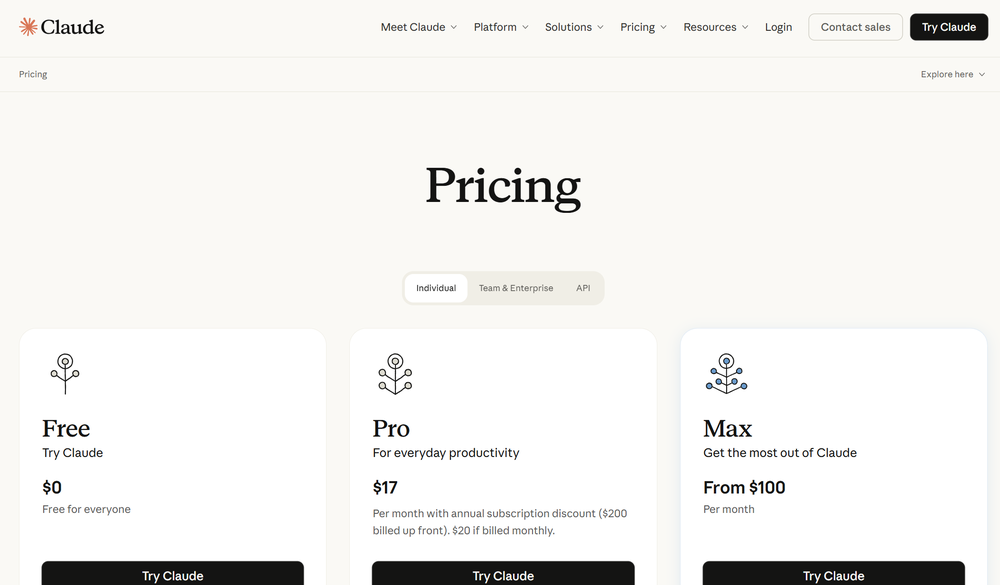
- Click the button below. It opens claude.com/pricing in a new tab.
- Create your account with your email. If you already have a Claude login, just sign in.
- Choose the Pro plan and enter payment. It's about $20 a month. Heads up: the page may pre-select the yearly option, which is a little cheaper per month but charges the whole year up front (~$200). Pick monthly to start unless you're sure.
- That's Step 1 done. Come back to this tab.
This isn't a fee to us. It's your own Claude account. It's what keeps CompassOps a one-time buy with no monthly bill from us. The free version is just chat. Pro includes the part we use.
2
Install the Claude app
Cowork is the part of Claude that does real work, not just chat. It comes inside the Claude desktop app.
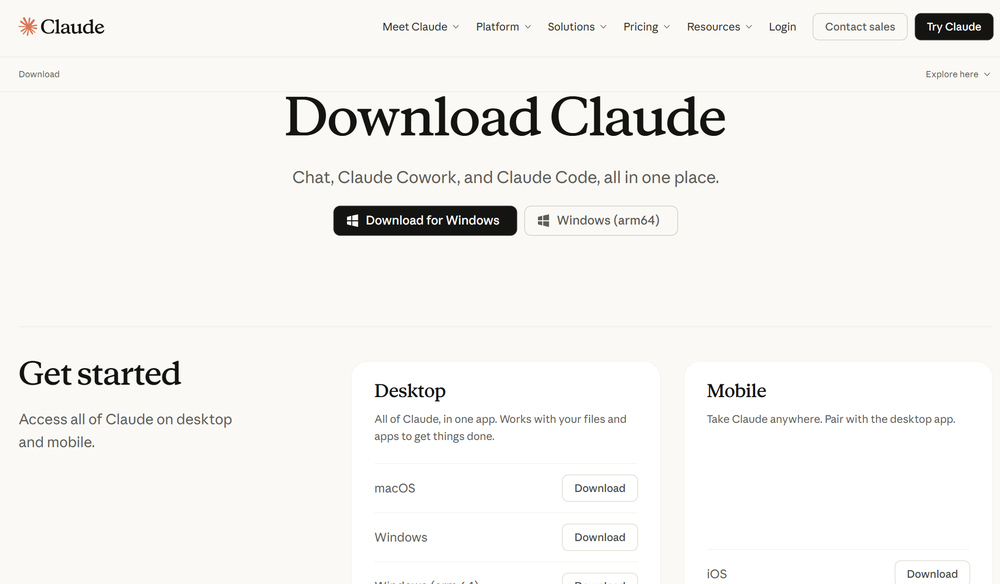
- Click the button below. It opens claude.com/download.
- Pick your computer, Mac or Windows. The download starts on its own.
- Open the file that downloaded and install it like any other app.
- Open the app and sign in with the Claude account from Step 1.
Cowork is already built in. There's nothing extra to install for it.
3
Open CompassOps
The file you downloaded is a zip, a packed-up folder. Unpack it first, then open it in the Claude app.
- Find the CompassOps file in your Downloads. It's a zip.
- Unpack it. On Windows: right-click it, choose Extract All, then Extract. (Heads up: don't just double-click the zip and start poking around inside it. On Windows that only peeks in, it isn't really unpacked. Use Extract All.) On a Mac: just double-click it. Either way, you end up with a CompassOps folder.

- Make sure the Claude app is up to date. If it offers an update, let it finish first. This feature needs the latest version.
- On the left side of the Claude app, find Projects and click the + next to it.
- Choose “Use an existing folder.”
- Pick your CompassOps folder, give it a name (CompassOps is fine), and click Create. That loads it.
You never have to touch the files inside. That's our job. From here, you just talk to it.
4
Say hello (the fun part)
In Cowork, type hello. CompassOps says hi back, asks a few quick questions about your business, then makes you something real on the spot. A week of social posts. A customer email. All in your voice.
When you read that first piece and it actually sounds like you, that's the moment it clicks. Every job after works the same way: ask in plain words, it does the work, you read it over and send it.
5
Two tricks worth knowing
- Forgot what it can do? Type "what can you do." It shows you the whole list in plain English. Nothing to memorize.
- Do something over and over? Have it build you a tool. Say "I keep retyping the same rental reply, can you make that easier?" and it builds you one in minutes. That's the part nobody else has.
Past that, just ask for what you need. "Write me posts for this week." "I need a sale email." "Help me reply to a rough review." A full guide is waiting inside the folder too (START-HERE).
6
Keep the guide handy
That's the whole setup. For how to use CompassOps day to day, the tricks, where your work saves, the lot, here's the full guide. Read it here anytime, no need to dig through files. Bookmark it.
?
Stuck? The three usual hiccups
- Can't find the download? Look in your Downloads folder for a file called CompassOps (it's a zip). Still nothing? Email me and I'll send it right over.
- Don't see "Projects" or "Use an existing folder"? Your Claude app needs updating. Update it, close and reopen it, and look on the left side again.
- Typed hello and nothing happened? Make sure you opened the CompassOps folder (the unpacked one), not the zip. Then type hello again.
Still stuck after that? Just email me, I answer personally: hello@compassops.io.